Documentation Index
Fetch the complete documentation index at: https://openmetadata-feat-feat-2mbfixdeploy.mintlify.app/llms.txt
Use this file to discover all available pages before exploring further.
Source
The Source is the connector to external systems and outputs a record for downstream to process and push to OpenMetadata.
Source API
class Source(IterStep, ABC):
    """
    Abstract source implementation. The workflow will run
    its next_record and pass them to the next step.
    """

    metadata: OpenMetadata
    connection_obj: Any
    service_connection: Any

    # From the parent - Adding here just to showcase
    @abstractmethod
    def _iter(self) -> Iterable[Either]:
        """Main entrypoint to run through the Iterator"""

    @abstractmethod
    def prepare(self):
        pass

    @abstractmethod
    def test_connection(self) -> None:
        pass
Example
A simple example of this implementation can be found in our demo Custom Connector here
As a consumer of Openmetadata-ingestion package, You can to add your custom connectors within the same namespace but in a different package repository.
Here is the situation
├─my_code_repository_package
  ├── src
      ├── my_other_relevant_code_package
      ├── metadata
      │   └── ingestion
      │       └── source
      │        └── database
      │         └── my_awesome_connector.py
      └── setup.py
├── openmetadata_ingestion
  ├── src
      ├── metadata
      │   └── ingestion
      │       └── source
      │        └── database
      │         └── existingSource1
      |         └── existingSource2
      |         └── ....
      └── setup.py
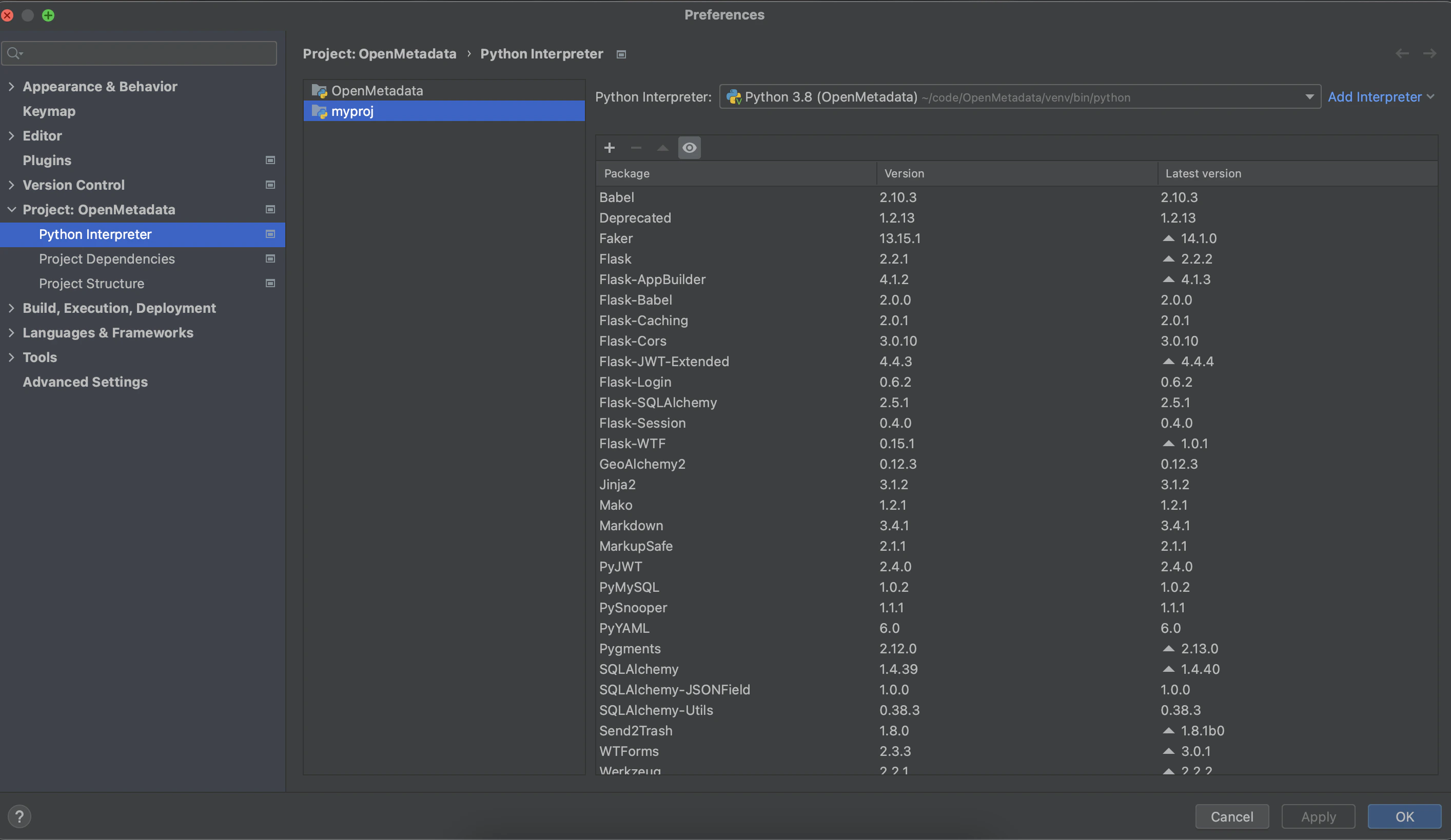
 Now Go to IDE and Project Settings in PyCharm, inside that go to project section, and select python interpreter, Select virtual environment created for the project as python interpreter
 Now apply and okay that interpreter