
Documentation Index
Fetch the complete documentation index at: https://openmetadata-feat-feat-2mbfixdeploy.mintlify.app/llms.txt
Use this file to discover all available pages before exploring further.
Upgrade on Bare Metal
This guide will help you upgrade an OpenMetadata deployment using release binaries.Prerequisites
Every time that you plan on upgrading OpenMetadata to a newer version, make sure to go over all these steps:Version Compatibility Matrix
Before upgrading your OpenMetadata instance, verify that the versions of the external services used in your deployment meet the minimum supported requirements. Upgrading OpenMetadata without compatible versions of these services may cause migration failures or runtime issues.Note:
If your current deployment uses versions lower than the minimum supported versions listed above, upgrade the respective services before proceeding with the OpenMetadata upgrade process.Backup your Metadata
Before upgrading your OpenMetadata version we strongly recommend backing up the metadata. The source of truth is stored in the underlying database (MySQL and Postgres supported). During each version upgrade there is a database migration process that needs to run. It will directly attack your database and update the shape of the data to the newest OpenMetadata release. It is important that we backup the data because if we face any unexpected issues during the upgrade process, you will be able to get back to the previous version without any loss. Since version 1.4.0, OpenMetadata encourages using the builtin-tools for creating logical backups of the metadata: For PROD deployment we recommend users to rely on cloud services for their databases, be it AWS RDS, Azure SQL or GCP Cloud SQL. If you’re a user of these services, you can leverage their backup capabilities directly: You can refer to the following guide to get more details about the backup and restore:Backup Metadata
Learn how to back up MySQL or Postgres data.
Understanding the “Running” State in OpenMetadata
In OpenMetadata, the “Running” state indicates that the OpenMetadata server has received a response from Airflow confirming that a workflow is in progress. However, if Airflow unexpectedly stops or crashes before it can send a failure status update through the Failure Callback, OpenMetadata remains unaware of the workflow’s actual state. As a result, the workflow may appear to be stuck in “Running” even though it is no longer executing. This situation can also occur during an OpenMetadata upgrade. If an ingestion pipeline was running at the time of the upgrade and the process caused Airflow to shut down, OpenMetadata would not receive any further updates from Airflow. Consequently, the pipeline status remains “Running” indefinitely.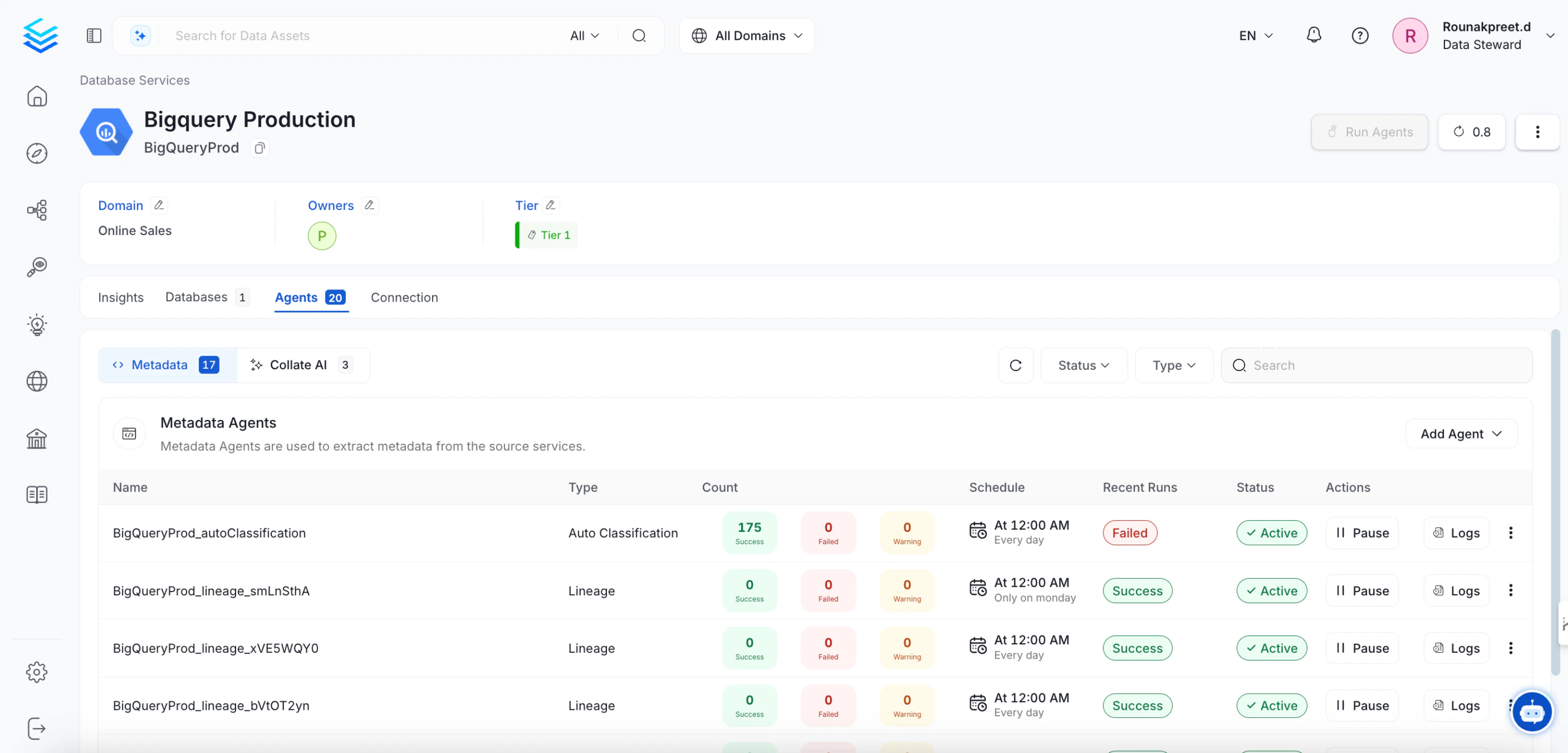
Expected Steps to Resolve
To resolve this issue:- Ensure that Airflow is restarted properly after an unexpected shutdown.
- Manually update the pipeline status if necessary.
- Check Airflow logs to verify if the DAG execution was interrupted.
Update sort_buffer_size (MySQL) or work_mem (Postgres)
Before running the migrations, it is important to update these parameters to ensure there are no runtime errors.
A safe value would be setting them to 20MB.
If using MySQL
You can update it via SQL (note that it will reset after the server restarts):
my.ini or my.cnf files with sort_buffer_size = 20971520.
If using RDS, you will need to update your instance’s Parameter Group
to include the above change.
If using Postgres
You can update it via SQL (not that it will reset after the server restarts):
postgresql.conf file
with work_mem = 20MB.
If using RDS, you will need to update your instance’s Parameter Group
to include the above change.
Note that this value would depend on the size of your query_entity table. If you still see Out of Sort Memory Errors
during the migration after bumping this value, you can increase them further.
After the migration is finished, you can revert this changes.
Enable pg_trgm Extension (Azure PostgreSQL Flexible Server)
Resolution Steps:
- Allow the extension - Go to Azure Portal → PostgreSQL Flexible Server → Server Parameters → Search for
azure.extensions→ Addpg_trgm(comma-separated if other extensions exist) - Restart the PostgreSQL server for changes to take effect
- Create the extension by running:
- Proceed with the migration
Requirements
This guide assumes that you have an OpenMetadata deployment that you installed and configured following the Bare Metal deployment guide.Ready to upgrade? Continue to the Upgrade Steps for the step-by-step upgrade process and post-upgrade tasks.